UK Self Assessment: Last-Minute Filing Guide Before January 31
Table of Contents
In short: HMRC accepts online Self Assessment returns until midnight on 31 January. Gather your UTR, Government Gateway login, and income and expense records, then log in, answer the tailoring questions, complete each section, review, submit, save the confirmation and pay what you owe. If you can't pay in full, file anyway and set up a Time to Pay arrangement.
It's January, the UK Self Assessment deadline is days away, and you haven't filed yet. Maybe you've been putting it off, waiting for a missing document, or simply forgot. You're not alone. HMRC figures show that millions of people file in the final weeks before the 31 January deadline, and 475,722 people filed on the last day itself in 2026. The important thing is that you can still get it done. This is your step-by-step guide to filing your Self Assessment return before the deadline passes.
Disclaimer: This article provides general information only and does not constitute tax advice. Consult a qualified accountant or tax adviser about your circumstances.
Don't panic. The online filing system is available 24 hours a day, seven days a week, right up until midnight on 31 January. If you have your records and your login details, you can get this done in a few hours, or even less.
What You Need Right Now
Before you start filing, gather everything you'll need. Hunting for documents mid-way through the return is the number one reason last-minute filers give up and miss the deadline. Get these together first:
Your login credentials:
- Unique Taxpayer Reference (UTR): a 10-digit number issued by HMRC when you registered for Self Assessment. It's on any correspondence HMRC has sent you. If you've lost it, you can find it in your HMRC online account or on a previous tax return.
- Government Gateway user ID and password: the login you use for HMRC's online services. If you've forgotten your password, you can reset it, but the process involves security questions and potentially a code sent by post, so do this as early as possible.
If you've never registered for Self Assessment online: You need to have registered before you can file. Registration can take up to 10 working days because HMRC sends an activation code by post. If you haven't registered yet and the deadline is imminent, call HMRC's helpline immediately to discuss your options.
Your income records:
- Total self-employment income for the tax year (6 April to 5 April). If you haven't tallied this, check your invoicing records, accounting software, or bank statements.
- P60 from any employer (if you were also employed)
- P11D for any benefits in kind
- Records of any other income: bank interest, dividends, rental income, pension income, capital gains
Your expense records:
- Business expenses by category (office supplies, travel, professional fees, subscriptions, insurance, phone, internet)
- Home office costs if you work from home
- Vehicle costs or mileage records for business travel
- Receipts, invoices, or digital records for all claimed expenses
Other documents:
- National Insurance number
- Bank statements covering the tax year
- Student loan details (if applicable)
- Records of Gift Aid donations or pension contributions
If you've been scanning receipts with Taxr throughout the year, your expenses are already categorised and ready to export. If you haven't, you'll need to go through your bank statements and reconstruct your expense records, which is exactly why year-round tracking matters.
Step-by-Step Last-Minute Filing
Step 1: Log In to HMRC Online
Go to gov.uk/log-in-register-hmrc-online-services and sign in with your Government Gateway credentials. Go to the Self Assessment section and select the tax year you're filing for.
Step 2: Answer the Tailoring Questions
HMRC's online system asks you a series of questions to determine which sections of the return are relevant: whether you were self-employed, employed, received rental income, had capital gains, or received foreign income. Based on your answers, the system shows only the sections you need to complete.
Step 3: Complete the Self-Employment Section
This is typically the most involved part for freelancers. You'll need to enter:
- Your business description (e.g., "freelance graphic designer," "IT consultant")
- Total business turnover: your total income from self-employment before expenses
- Total allowable business expenses: enter a single total or break expenses down by category (recommended)
- Net profit: the system calculates this automatically (turnover minus expenses)
If you're VAT-registered, report net figures (excluding VAT). If you don't have exact figures, use the best estimates you can based on your bank statements. An honest estimate filed on time is infinitely better than missing the deadline while you chase down the exact cost of a train ticket from September.
Step 4: Complete Other Sections
If you were also employed, enter the figures from your P60. If you had other income sources (interest, dividends, rental income), enter those in the relevant sections. The system guides you through each one.
Step 5: Review Your Return
Before submitting, HMRC shows you a summary of your return and calculates your tax liability. Review this carefully:
- Does the income figure look right compared to your records?
- Are your expenses reasonable relative to your income?
- Does the tax owed match your rough expectations?
If something looks obviously wrong, go back and check your entries.
Step 6: Submit
Once you're satisfied, submit your return. HMRC provides a confirmation screen with a reference number and the date and time of submission. Save this confirmation. It's your proof that you filed on time.
Step 7: Pay What You Owe
Submitting your return and paying your tax are separate steps. Once you know the amount, pay immediately using one of these methods:
- Faster Payments (online banking): same or next working day. Use your UTR as the payment reference.
- Debit card online: through HMRC's payment portal; the payment usually reaches HMRC the same or next day.
- Direct Debit: allow five working days to set up if it's your first time.
Do not rely on cheques or bank transfers that take multiple days if you're paying close to the deadline. HMRC counts the date they receive the payment.
For a full breakdown of payment options and the deadline structure, see our UK Self Assessment deadline guide.
What If You Can't Pay?
If you can file your return but can't afford to pay the full amount, file your return anyway. Filing on time avoids the late-filing penalty, which is separate from late-payment penalties.
Then contact HMRC to set up a Time to Pay arrangement. You can do this online through your HMRC account if:
- You owe £30,000 or less
- Your return is filed and up to date
- You're within 60 days of the payment deadline
The arrangement lets you spread your payments over up to 12 months. Interest is charged on the outstanding balance, but you'll avoid the escalating late-payment penalties.
If you owe more than £30,000, call HMRC's Self Assessment Payment Helpline on 0300 200 3822 to discuss your options.
What If You Can't File on Time?
Unlike the US system, HMRC doesn't offer a formal extension for Self Assessment filing. If you miss the 31 January deadline, the penalties are:
- Immediate: £100 fixed penalty
- After 3 months: Daily penalties of £10 per day, up to a maximum of £900
- After 6 months: 5% of the tax due or £300, whichever is greater
- After 12 months: A further 5% of the tax due or £300, whichever is greater
These add up quickly. File as soon as you can: the £100 penalty applies whether you're one day or three months late, but the daily penalties don't start until three months after the deadline. If you have a reasonable excuse (serious illness, bereavement, or HMRC systems being unavailable), you can appeal the penalty. However, "I forgot" or "I was too busy" are not considered reasonable excuses.
Avoid This Next Year
If you're reading this guide while frantically trying to file before midnight, make yourself a promise: this is the last year you'll do this.
The stress of last-minute filing is entirely preventable. It comes down to one thing: keeping your records throughout the year instead of reconstructing them in January. That means:
- Scan receipts when you get them. Not "later." Now.
- Review your records weekly. Ten minutes every Friday saves hours in January.
- Export quarterly summaries. Check your income and expenses every three months so there are no surprises.
- Start tracking from 6 April. The day the new tax year begins is the day your expense tracking should begin.
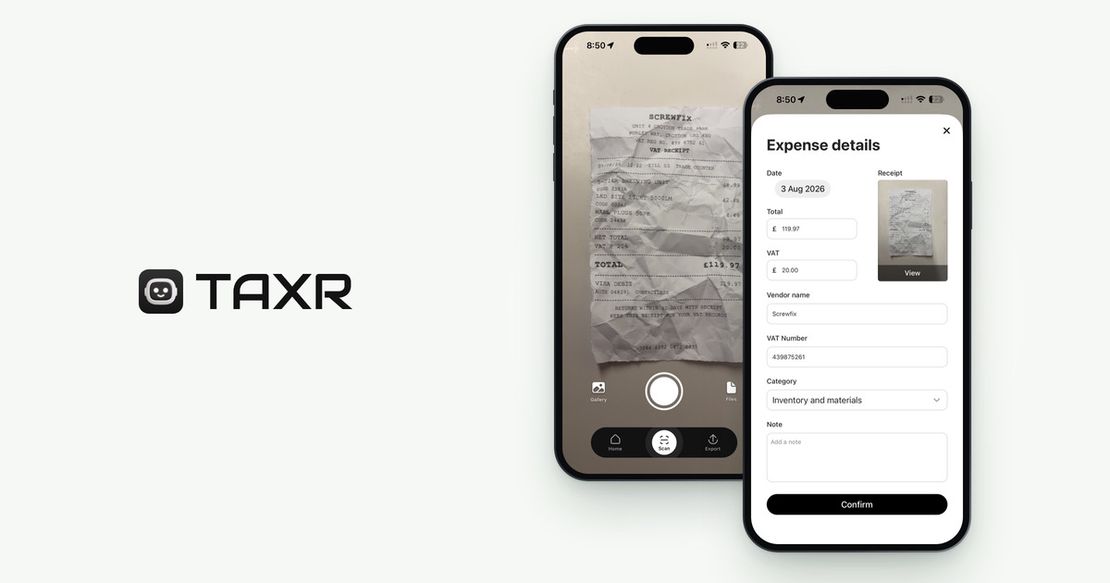
Taxr makes this easy. Scan a receipt with your phone camera and the AI reads the date, amount, vendor, and VAT in seconds. Every expense is stored, categorised, and ready to export. When January arrives next year, you'll have a clean, complete record to file from instead of a pile of estimates.
For a complete walkthrough of the Self Assessment process without the time pressure, see our UK Self Assessment step-by-step guide.
Download Taxr and make next January's deadline feel like just another day.