How to Organise Your Receipts Before Sending Them to Your Accountant
Table of Contents
In short: Scan paper receipts as soon as possible (the ATO accepts digital copies), sort everything by expense category and then by date, and send your accountant category totals, a detailed transaction list, the organised receipt images, bank statements for every business account, and notes flagging mixed-use items, large purchases and unusual expenses. Organised records take your accountant less time, which means lower fees and fewer missed deductions.
If you've ever handed your accountant a plastic bag full of crumpled receipts, a shoebox of paper slips, or a folder of 200 unnamed photos on your phone, you already know the look they give you. The bigger problem isn't the look. It's the bill. When you don't organise receipts for your accountant properly, you pay more in fees, risk missing deductions, and make the entire process slower and more painful than it needs to be.
Disclaimer: This article provides general information only and does not constitute tax advice. Consult a registered tax agent for advice specific to your circumstances.
This guide walks you through exactly how to prepare your expenses before sending them to your accountant, so tax time is faster, cheaper, and far less stressful.
Why Your Accountant Hates the Shoebox
Accountants charge by the hour, or at minimum by the complexity of the work. When you hand over unsorted receipts, your accountant has to:
- Sort through every receipt manually
- Figure out what each one is for
- Match them to categories
- Identify missing information
- Come back to you with questions
- Wait for your answers before continuing
Every one of those steps costs you money. A well-organised client might take their accountant two or three hours to process. A shoebox client? Easily double or triple that. Some accountants charge a premium, or refuse disorganised clients altogether.
Beyond fees, disorganised records mean deductions get missed. If your accountant can't tell what a faded receipt was for, they won't claim it. If they don't know about an expense at all because it was buried in a pile, you lose that deduction entirely.
How to Organise Your Receipts: Sort by Category, Then Date
The most useful way to organise receipts for your accountant is by expense category first, then by date within each category. This mirrors how your accountant will process them and how deductions appear on your tax return.
Start with the major categories relevant to your work. If you're a freelancer or sole trader, common categories include:
- Home office: rent or mortgage interest (work portion), electricity, internet, office furniture
- Vehicle and travel: fuel, tolls, parking, public transport, flights, accommodation
- Equipment and technology: computers, monitors, cameras, phones, printers
- Software and subscriptions: SaaS tools, cloud storage, design software, accounting apps
- Professional services: accountant fees, legal fees, bookkeeping
- Marketing and advertising: website hosting, paid ads, business cards, portfolio costs
- Insurance: public liability, professional indemnity, income protection
- Supplies and stationery: printer paper, ink, pens, notebooks, postage
- Meals and entertainment: client meetings (note: client entertainment, including meals, is generally not deductible in Australia)
- Professional development: courses, conferences, books, certifications
For a detailed guide to setting up your categories, see our freelancer expense categories guide.
Within each category, arrange receipts chronologically. This makes it easy for your accountant to verify totals against bank statements and spot any gaps.
What Your Accountant Actually Needs From You
Many freelancers over-deliver on raw receipts and under-deliver on what accountants actually find useful. Here's what your accountant really wants:
1. Categorised Expense Totals
A simple summary showing total spend per category is worth more than a stack of individual receipts. Your accountant can review the totals, spot anything unusual, and then drill into individual receipts only where needed. A spreadsheet or exported report showing "Home Office: $2,340 | Software: $1,890 | Travel: $3,150" saves enormous time.
2. Receipt Images (Organised)
The ATO requires you to keep records of your claims, and digital copies are accepted. Your accountant needs access to receipt images in case they need to verify a specific expense or if you're audited. The key is that these images should be organised by category, not dumped into a single folder called "receipts 2026."
3. Income Summary
Your accountant needs a clear picture of your total income for the year. This includes all invoices issued, income from each client, any investment income, interest earned, and income from other sources. If you're registered for GST, they'll need your BAS lodgement history as well.
4. Bank Statements
Even with perfect receipt records, your accountant will want bank and credit card statements to cross-reference. Make sure you download statements for every account used for business transactions, including PayPal, Stripe, or other payment platforms.
Digital vs Paper Receipts
The ATO accepts digital copies of receipts, so there's no need to keep shoeboxes of paper anymore. In fact, digital is better: paper fades, gets lost, and can't be searched.
For paper receipts you still receive, scan or photograph them as soon as possible. The thermal paper used for most retail receipts fades within months, and a blank slip is worthless to the ATO. When photographing receipts, make sure the date, amount, vendor name, and GST amount are all legible. If a receipt has already faded or gone missing, our guide to what the ATO accepts when a receipt is lost covers your options.
For digital receipts (emailed invoices, online purchase confirmations), save them in the same organised folder structure as your scanned paper receipts. Don't leave them buried in your inbox where they'll be impossible to find later.
The simplest approach is to use a receipt scanning app that captures and categorises everything in one place. This eliminates the paper-vs-digital divide entirely.
How to Prepare a Clean Export for Your Accountant
When it's time to hand everything over, your accountant will appreciate receiving your data in a format they can actually work with. Here's what a clean handoff looks like:
- A summary report: category totals, income total, GST collected and paid (if applicable)
- A detailed transaction list: every expense with date, vendor, amount, GST, and category, ideally in Excel or PDF format
- Organised receipt images: sorted into folders by category, or linked to each transaction in an app export
- Bank statements: for all business accounts, covering the full financial year
- Any notes or flags: unusual expenses, mixed-use items, large one-off purchases, or anything else your accountant should pay attention to
If you're using accounting software or a tracking app, most of these can be generated with a single export. The less manual assembly required, the better.
What to Flag for Your Accountant
Don't just hand over data. Highlight anything that needs a professional eye:
- Mixed-use items: Equipment or services used for both personal and business purposes. Your accountant needs to know the split so they can calculate the deductible portion.
- Large purchases: Equipment and other assets. A small business (aggregated turnover under $10 million) using the simplified depreciation rules can usually claim each asset costing less than $20,000 in full in the year it's first used, under the instant asset write-off, while an employee can claim a work item straight away only if it cost $300 or less. Anything above those limits is depreciated. Flag these so your accountant can apply the correct treatment.
- Unusual expenses: Anything that doesn't fit neatly into a standard category, or that might look odd to the ATO. It's better to explain upfront than have your accountant waste time guessing.
- Changes from last year: New income sources, new types of expenses, changes to your working arrangements (started working from home, moved to a co-working space, bought a car for work). These affect how your return is prepared.
- Outstanding invoices: If you're on a cash basis, only include income you've actually received. If you're on an accruals basis, include income you've invoiced even if it hasn't been paid. If your business is a company that makes a tax loss, the 2026-27 Budget brought back loss carry-back (for losses from the 2026-27 income year onwards), and our guide to the records clients need for loss carry-back claims explains exactly what documentation your accountant will need.
For more on tracking business expenses throughout the year so you're not scrambling at tax time, see our guide for sole traders.
Let Taxr Do the Organising for You
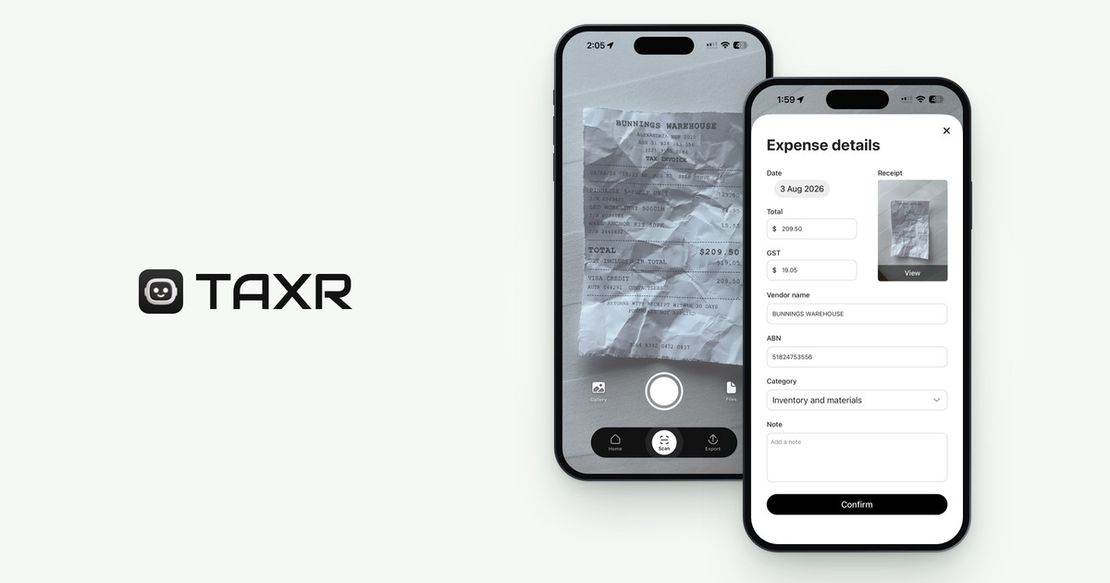
The best time to organise your receipts is throughout the year, as expenses happen, not the week before your accountant meeting. Taxr makes this quick. Snap a photo of any receipt and the AI extracts the date, amount, vendor, and GST automatically, then suggests a category for you to confirm. Every receipt is categorised, searchable, and stored securely in the cloud.
When it's time to see your accountant, export a clean, categorised report in seconds and have it emailed straight to them. No sorting and no shoebox. Your accountant gets exactly what they need, you spend less time preparing, and your fees stay lower because your accountant spends less time untangling your records.
Stop paying your accountant to sort your receipts. Start giving them what they actually need.